The Setup Engineer is for drivers who already have a working setup and want live, targeted feedback while they drive it — not a from-scratch baseline build. It has three tools: Lap Wizard for whole-lap issues, Corner Wizard for a specific corner, and the In-Race Engineer for keyboard-driven advice without ever leaving the cockpit view.
New to onRails entirely? Start with the Getting Started guide first — it covers the Launcher, sim connection, and settings that apply here too.
Starting from zero with no setup at all? You want the Setup Developer Module guide instead.
Settings
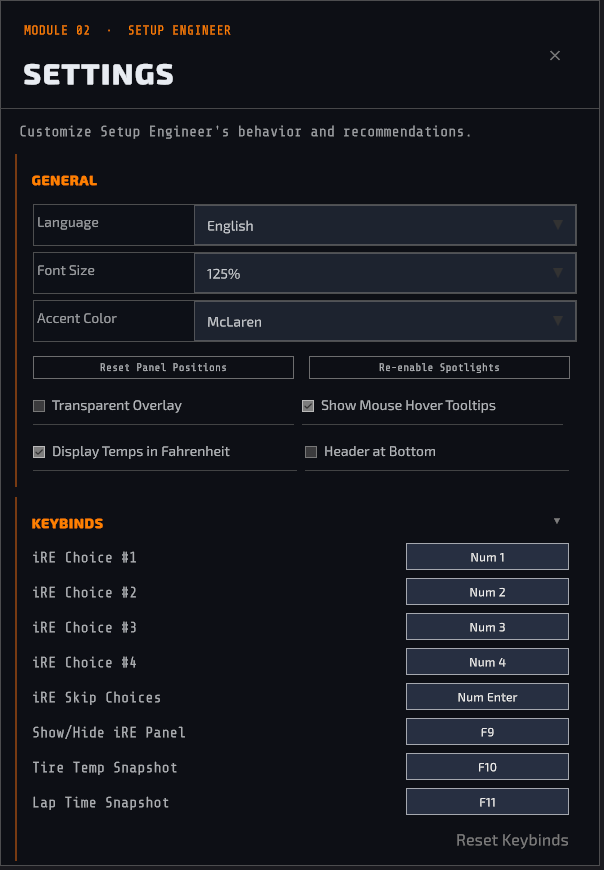
General
- Reset Panel Positions — snaps every draggable panel back to its default spot, useful if you’ve dragged something off-screen.
- Re-enable Spotlights — brings back the one-time spotlight tips if you dismissed them and want a refresher.
- Solid Background Window — same overlay/solid-window toggle covered in the Getting Started guide, available here too.
- Show Mouse Hover Tooltips — toggles the little tooltips that appear when you hover UI elements.
- Display Temps in Fahrenheit — switches tire temp display from Celsius.
- Header at Bottom — moves the app header to the bottom of the screen instead of the top.
- Card-Style Recommendations — the same one-at-a-time card vs. scrollable list toggle mentioned throughout this guide.
Keybinds — every hotkey used in Setup Engineer (In-Race Engineer choices 1–4, skip, toggle, tire temp snapshot, lap time snapshot) is rebindable here. Click a keybind button and press your new key, or use Reset Keybinds to put everything back to default.
Selections and subjects
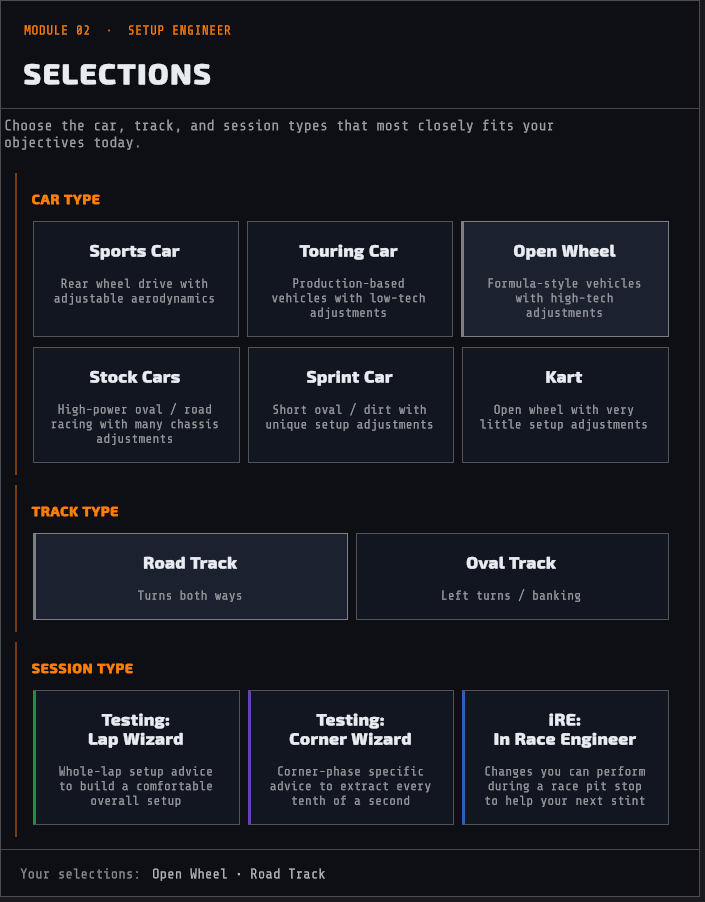
Pick the car type and track type that best match what you’re driving — same idea as the Setup Developer Module, this tells the advice logic which directions and subjects apply. As with Setup Developer, this doesn’t need to be exact: pick your best guess and move on.
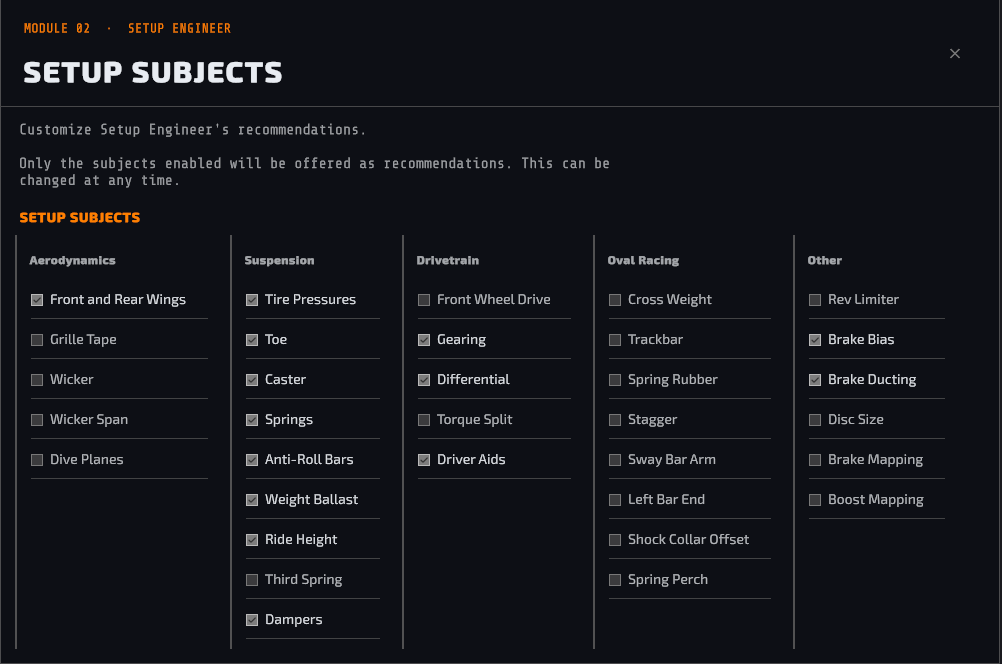
Click the Subjects button (header) to open the Subjects overlay. This is where you control which categories of setup change Setup Engineer is allowed to recommend — only the toggles you leave on will ever show up in a recommendation, and you can flip them at any time.
Not every sim exposes the same setup options. If your sim doesn’t support Third Spring adjustments, or doesn’t let you touch Grille Tape, there’s no reason to have Setup Engineer suggesting changes you can’t actually make. Use the Subjects panel to uncheck anything your sim doesn’t support — it cuts down on noise and keeps every recommendation you get something you can actually go apply.
Using the Lap Wizard
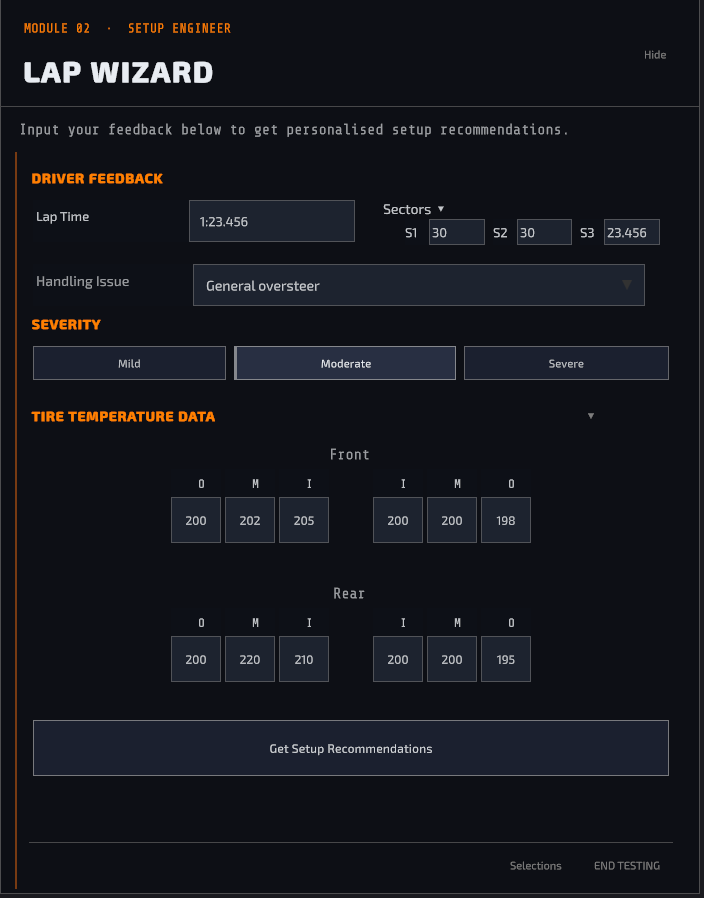
The Lap Wizard is the core of what onRails does. Drive a lap, tell it what the car felt like, and it hands back specific, actionable changes — not generic setup theory, but advice built from your car, your track, your lap, and (if you provide them) your actual tire temps. This is the tool most sessions will center on.
Lap time and tire temp data are both optional, but strongly recommended. Skip them and you’ll still get advice based on the condition you describe — add them and that advice gets sharper, plus you unlock the tire-temp report and the lap-time trend graph described below.
- Log your lap time. Press Num * to capture your last completed lap time straight from the sim, or type it in manually.
- Describe the condition. Pick from the dropdown — general understeer, rear unstable under braking, not turning under acceleration, and so on. If nothing’s actually wrong and you just want to log a clean lap, pick “No issue — just log this lap” at the top of the list; this skips the whole-lap advice. You’ll still get tire-related advice if you’ve entered tire temps.
- Set severity. Mild, Moderate, or Severe — how bad is it, really.
- (Optional) Add tire temperatures and sector times. Press Num / to snap tire temps straight from the sim, or type them in. Sector times (S1/S2/S3) are collapsed by default — click the Sectors header to expand.
- Click Get Setup Recommendations.
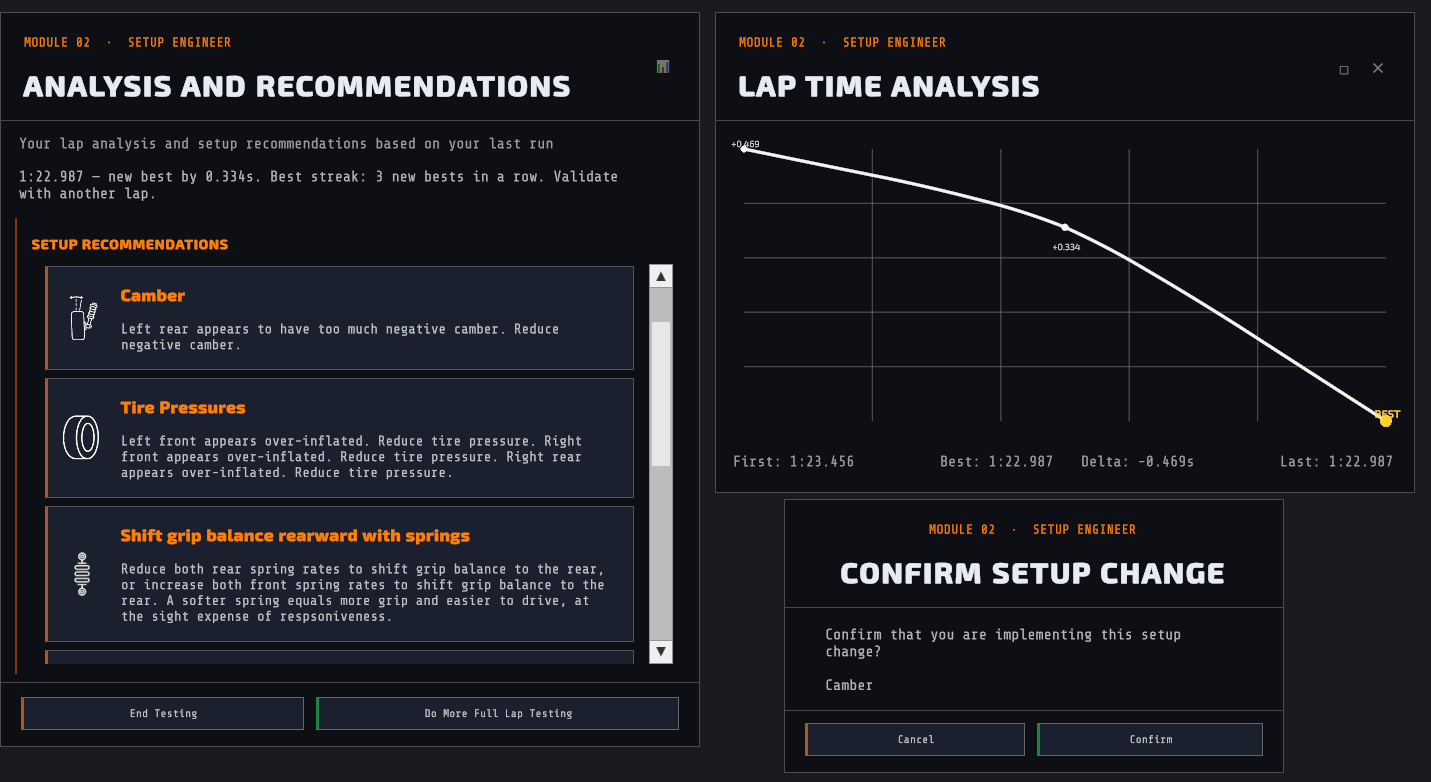
Recommendations appear one at a time in a card (or as a scrollable list, depending on your Settings toggle). Each card tells you exactly what to change. Click Apply to confirm you made the change — this logs it so you can track what you’ve tried. If tire temps were entered, you’ll also see a separate tire-temp report above the recommendations, covering over/understeer signal, camber, and pressure — read-only, not something you “apply.”
Your lap times build a trend graph as you go, so you can see whether each change is actually working. Do More Testing takes you straight back into another lap with the same setup; End Testing wraps the session with a summary.
Using the Corner Wizard
Use the Corner Wizard when the problem is isolated to specific corners — say, every right-hander mid-corner, or left-hand entries only.
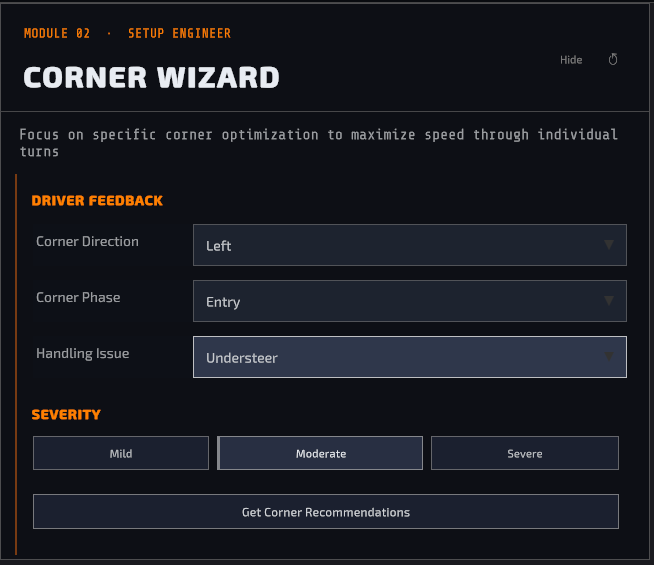
Fill in all three dropdowns:
- Direction — Left or Right corners.
- Phase — Entry, Apex, or Exit.
- Condition — Understeer or Oversteer.
- Set Severity, then click through for advice.
Recommendations work the same as Lap Wizard — card or list, Apply to confirm, and a confirmation popup before it’s logged. There’s no tire-temp report here since Corner Wizard doesn’t take tire inputs.
Using the In-Race Engineer
The In-Race Engineer is built specifically for mid-race feedback — think of it as a real engineer on the radio, helping you fine-tune the car to changing conditions as the race unfolds. It’s a short keyboard questionnaire that appears in the overlay and answers entirely on the numpad, so you never have to break focus to click through menus.
Because it’s meant for use while you’re actually racing, its recommendations are limited to adjustments you can actually make from the cockpit or during a pit stop — nothing that requires a garage.
Once open, it asks up to four quick questions:
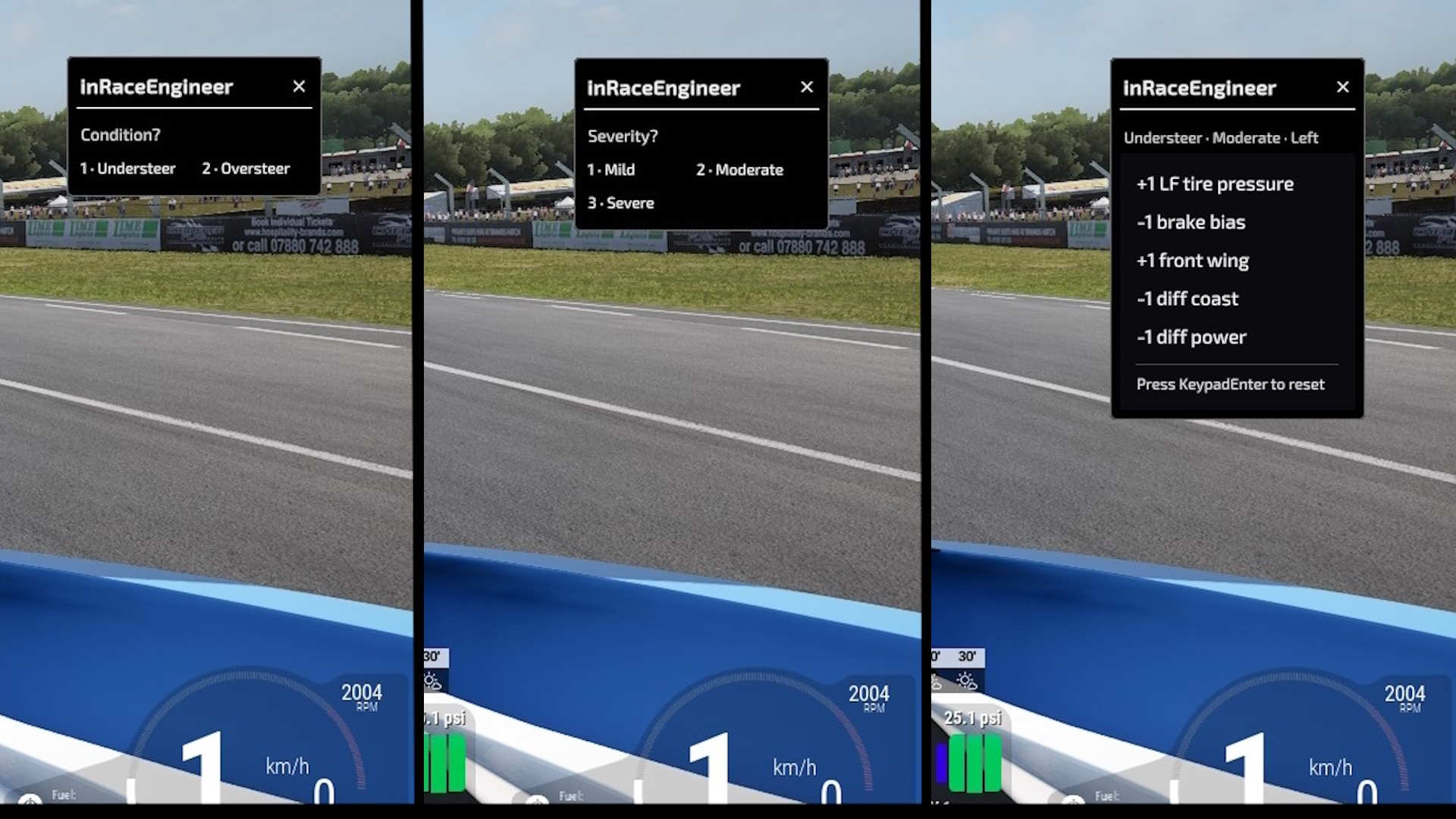
- Condition — Understeer (1) or Oversteer (2). Required.
- Severity — Mild (1), Moderate (2), Severe (3). Press the skip key to jump straight to results.
- Direction — Whole Lap (1), Left Corners (2), Right Corners (3). Skip to get whole-lap advice.
- Phase — Whole Corner (1), Entry (2), Apex (3), Exit (4). Skip for a phase-agnostic answer.
Answer as many questions as you want detail for, or skip early for a faster, broader answer. Whole-lap answers cap at your top 3 highest-priority changes; answering Direction and/or Phase narrows things down to exactly what applies, with no cap on how many show up.
Results stay on screen until you press skip again or close the panel — they don’t disappear on a timer, so you can read them at your own pace between corners.
Hiding the panel pauses the questionnaire — reopening it picks up exactly where you left off, so a hidden panel won’t silently skip ahead while you’re not looking at it.
Discover more from Virtual Race Car Engineer
Subscribe to get the latest posts sent to your email.